Visual Studio Code
Privatemode works with AI coding extensions in Visual Studio Code. The officially supported extensions are GitHub Copilot Chat, Continue, and Cline. We recommend using the Privatemode GitHub Copilot extension for AI chat, editing, and agent mode and the Continue extension for tab completions.
Setting up the Privatemode proxy
Follow the proxy and API quickstart to run the Privatemode proxy. Usually, it's advisable to enable prompt caching via --sharedPromptCache.
Configuring GitHub Copilot Chat
You can use Privatemode via GitHub Copilot with the Privatemode VS Code extension. It integrates the confidential coding models into GitHub Copilot for Chat.
- Install the GitHub Copilot Chat extension from the VS Code Marketplace.
- Install the Privatemode VS Code extension.
- Choose
kimi-k2.5as the default model. If you want a lower-latency option, usegpt-oss-120b. Use Qwen3-Coder only if you specifically need it for an existing workflow while it remains available.
See the extension’s Marketplace page for details.
GitHub Copilot doesn't allow changing the tab completion model. Make sure you disable Copilot tab completions as described in the Privatemode extension.
If you’re using a GitHub Copilot Business or Enterprise plan, the Manage Models option may not appear. To enable it, switch temporarily to a Pro or Free plan. This limitation is being addressed by Microsoft.
Configuring Cline
-
Install the Cline extension from the VS Code Marketplace.
-
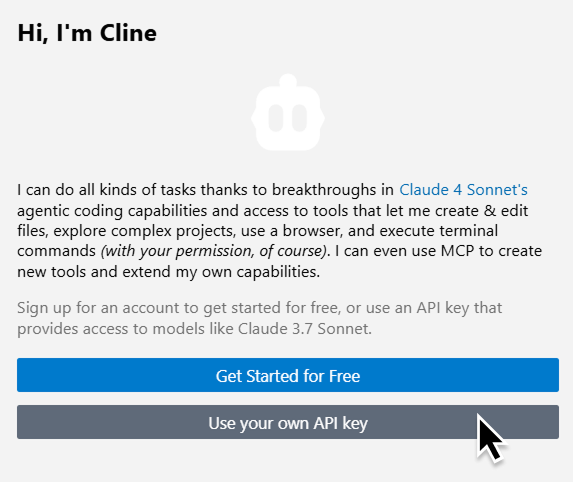
Open the extension settings and select Use your own API key.
-
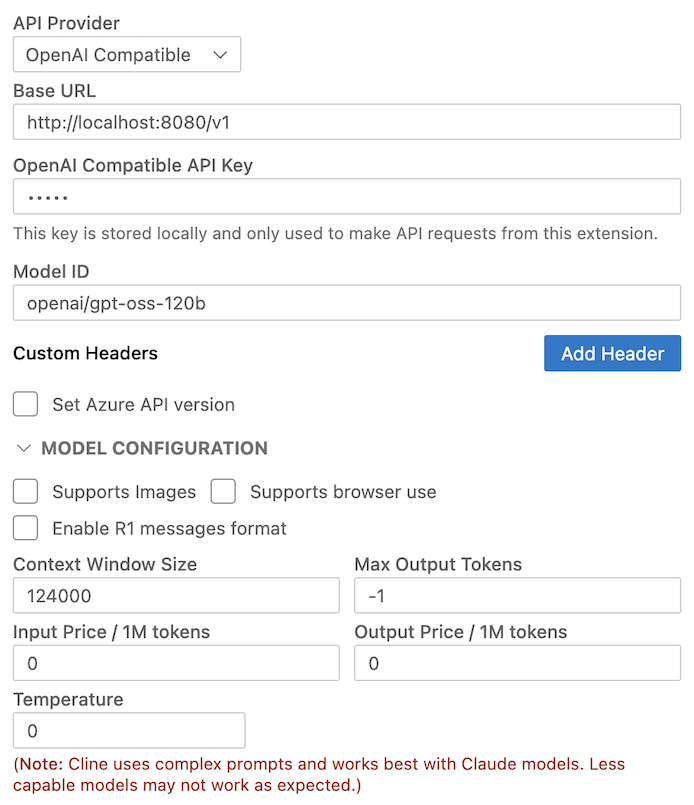
Enter the following details in the UI:
- API Provider: OpenAI Compatible
- Base URL: http://localhost:8080/v1
- API Key: null
- Model ID: kimi-k2.5
- Context Window Size: 124000
More details on Cline’s provider configuration are available in the Cline docs.